Getting Started
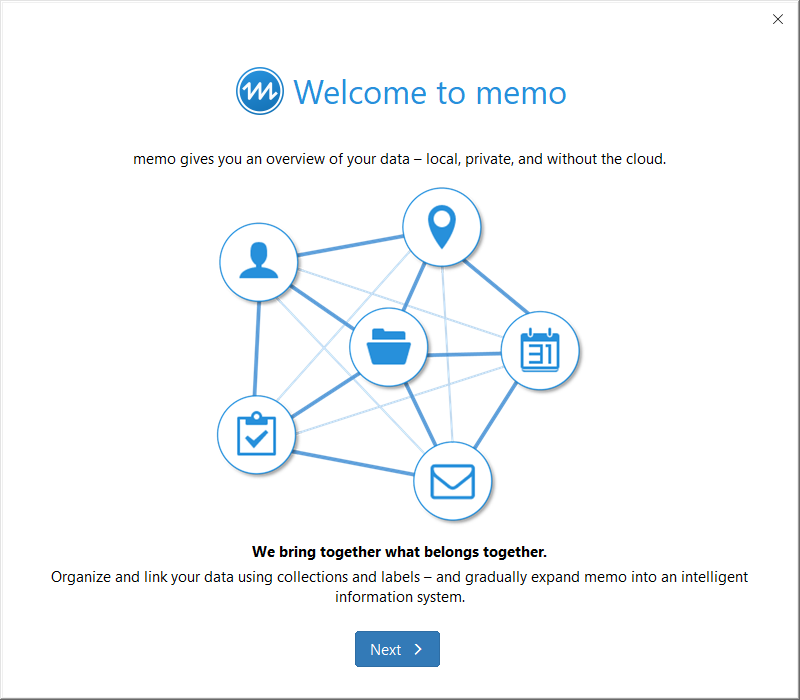
After installing memo, an introduction dialog opens on first start to help you set up the application.
Welcome to memo
The welcome page briefly explains the core of memo. The application indexes and analyzes files of your choice. Your data is classified, made searchable, can be enriched with metadata, and grouped into collections.
Optimize Performance
The built-in antivirus software of Windows, the Windows Defender, is active by default and monitors all running programs for file system access. This can slow down applications with search and analysis features — including memo.
To optimize memo's performance, individual programs can be excluded from being monitored by Microsoft Defender. You can do this in this step.
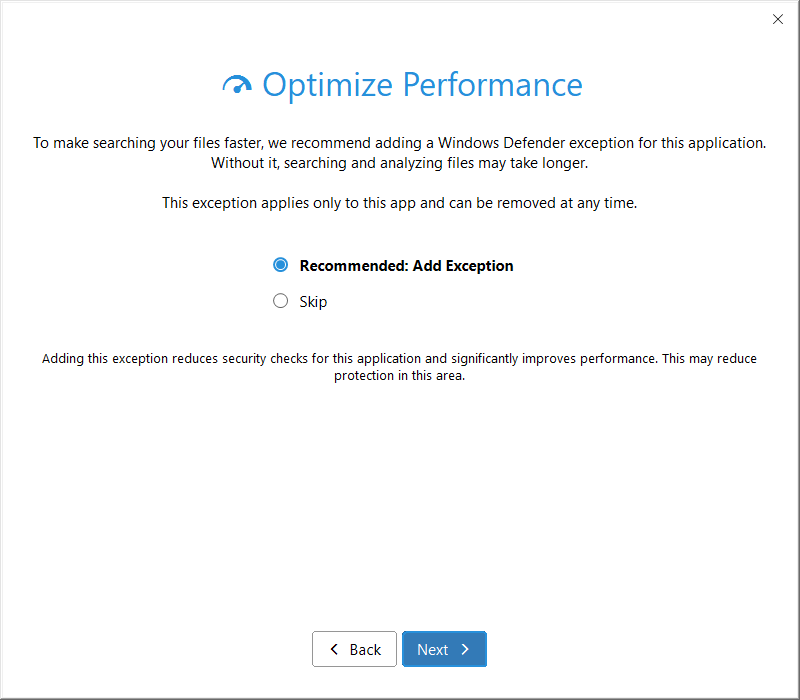
If you choose to add an exclusion for memo, a PowerShell script requiring administrator privileges runs when you click "Next". The script checks whether an exclusion already exists for memo's executable. If not, an exclusion for memo is added.
To view the list of current exclusions, navigate in Windows to Settings > Privacy & Security > Windows Security > Virus & threat protection > Virus & threat protection settings > Manage settings > Exclusions > Add or remove exclusions.
Whether you add an exclusion is entirely up to you. You can also do this later in memo's settings, under Preferences > Microsoft Defender > Add exclusion for memo.
Files & Folders
In this step, you choose the folders that memo should index and analyze. By default, the signed-in user's home folder is checked.
Checking a folder also includes all of its subfolders. To exclude individual subfolders of a checked folder, simply click that subfolder.
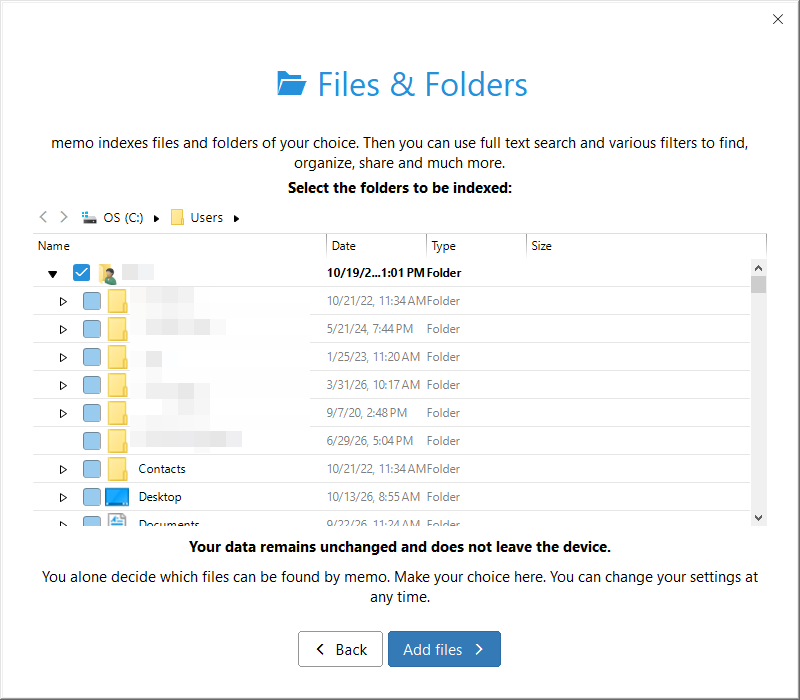
The file tree may not show all existing folders. This is because certain folders can be generally excluded from indexing via the filter settings. If folders appear to be missing, check the filter settings under Preferences > Index.
Update & Feedback
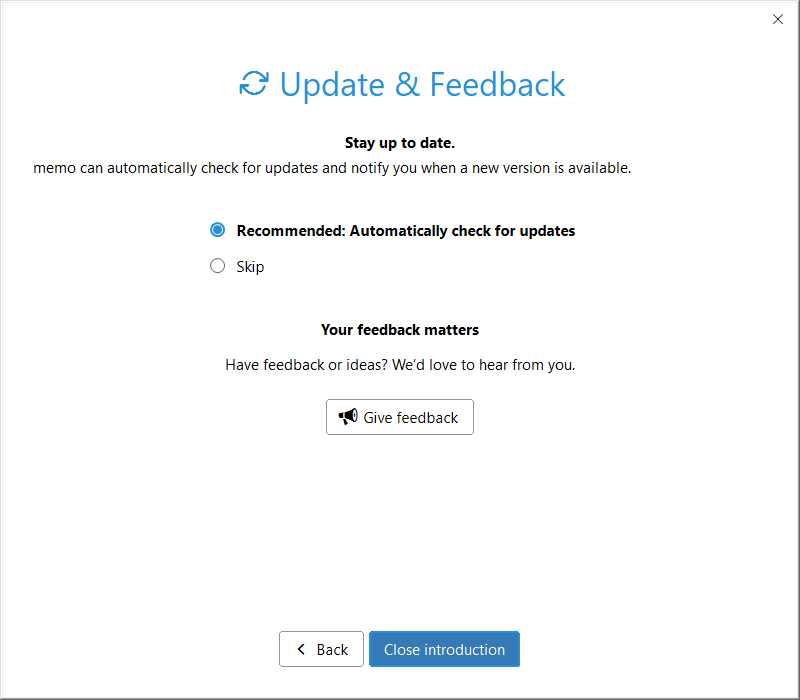
In this final step, you can advise memo to check for updates on a regular basis. If you confirm this, the application will send a request to our server at least once a day to check for updates.
You can change this setting at any time later, under Preferences > General.