
Search & Collect
A powerful search and organization app to explore, filter, and connect your files and metadata.
Focus Search Bar
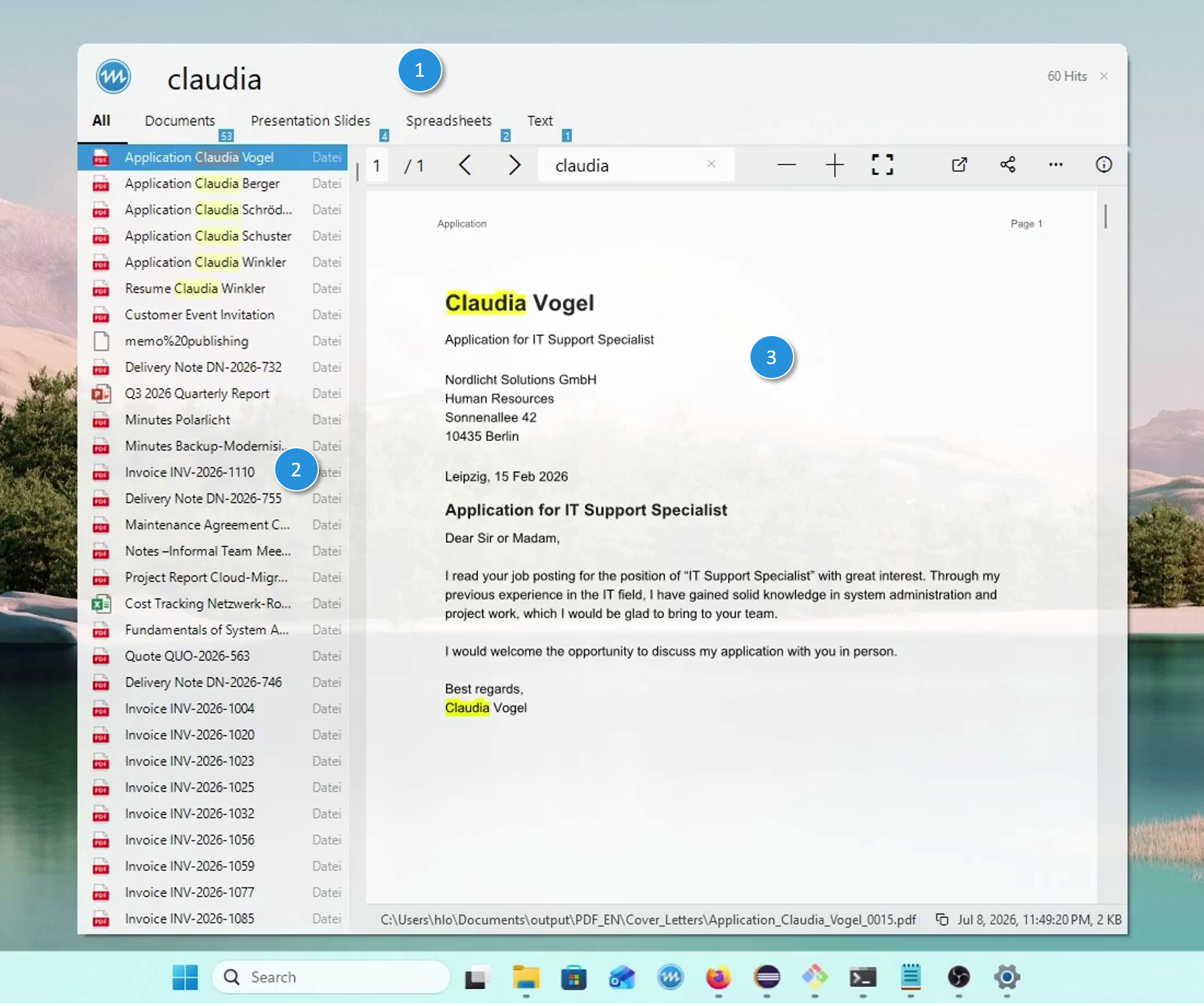
- Search field — enter your search term. Use the
#hashtag to access all indexed metadata fields and their values. - Result list — the search hits appear here; each keystroke updates the results instantly.
- Integrated preview — use and to navigate the result list, with each hit shown instantly in the preview.
Main Search Window
This is the main area of Search & Collect. It provides powerful tools to explore, filter, and search your data.
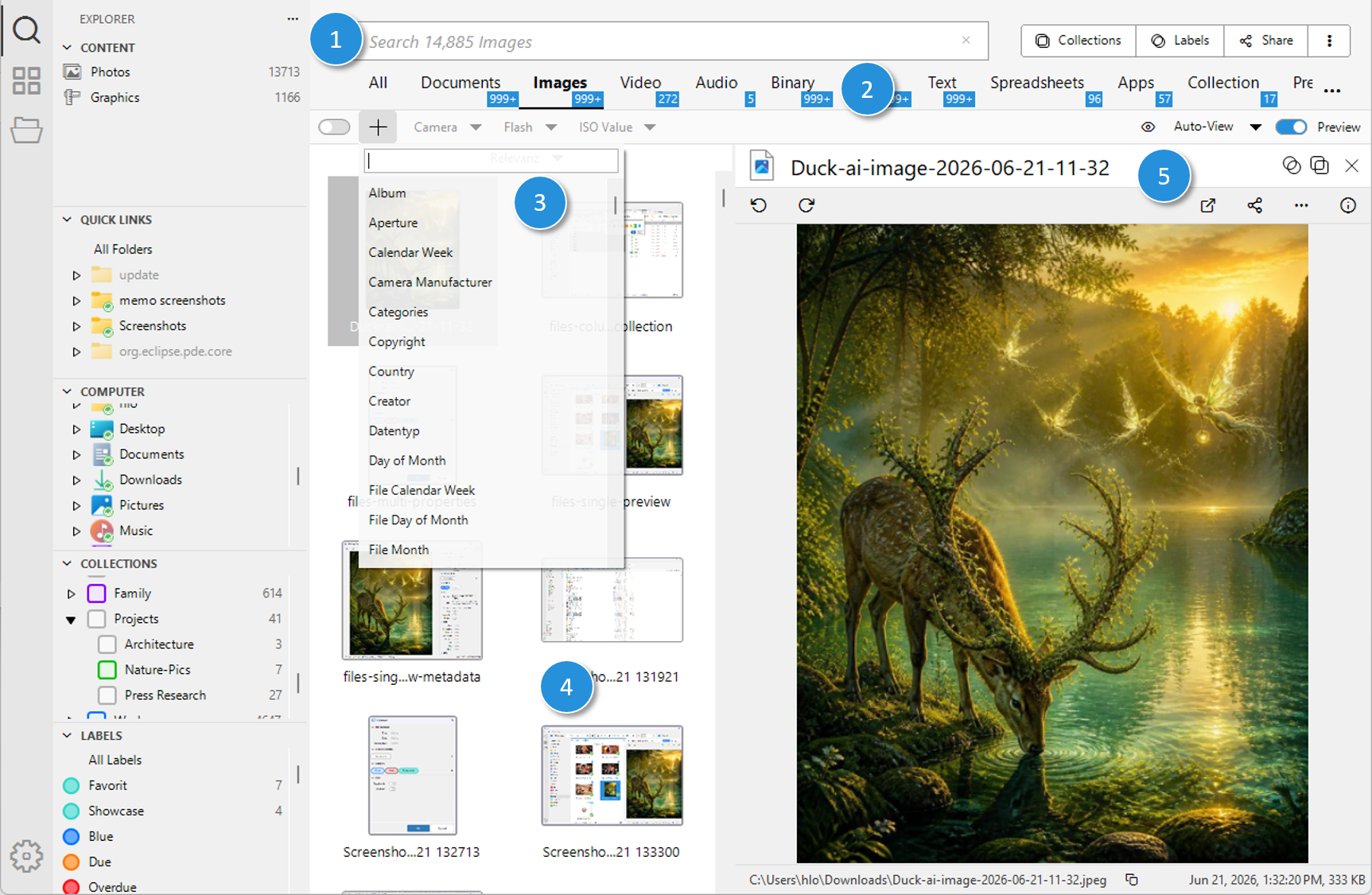
- Search field — enter your search term. Use the
#hashtag to access all indexed metadata fields and their values. - Media type filter — shows the number of hits grouped by media type in real time.
- Filter list — the filter row shows various additional filters. Clicking + next to the row lets you choose further filters.
- Result list — the search hits appear here, each keystroke updates the results instantly.
- Integrated preview — selecting a search hit updates the preview on the right. As with Focus, you can navigate the result list with and as long as the search field is active.
Explorer
The Explorer area on the left provides valuable insight into your indexed data.
Clicking ... opens a selection list with all available filter views. Once a filter is selected, the search is narrowed accordingly.
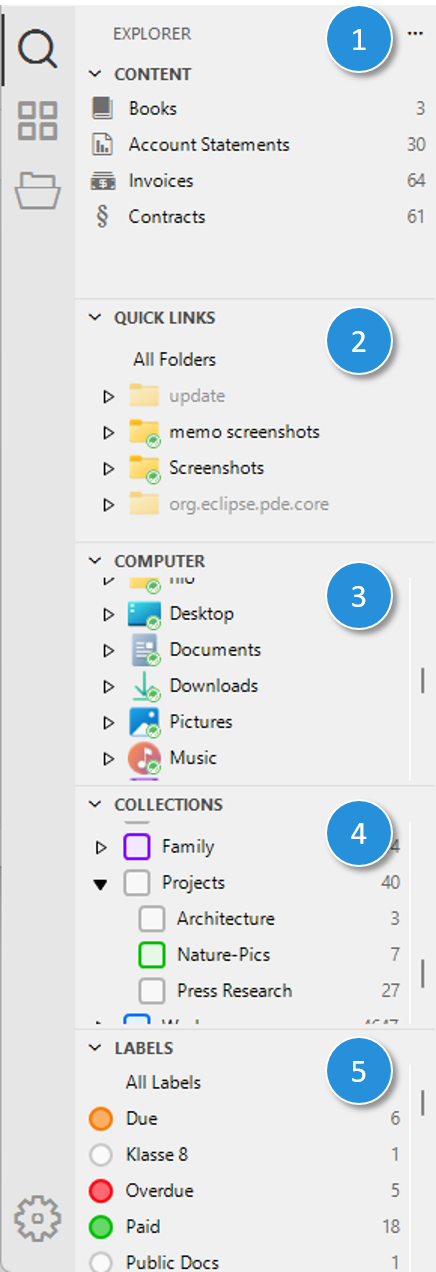
- Content — shows all discovered content types, e.g. invoices, books, or photos.
- Quick Access — shows bookmarked folders, e.g. ones added via Files in memo.
- Computer — shows the system's most important folders.
- Collections — shows all collections with the number of items they contain.
- Labels — shows all labels with the number of items assigned to them.
Facets Browser
The Facets Browser lets you narrow down the search space dynamically. For every visible filter, all indexed values are listed along with their hit count.
Selecting a value for a filter immediately narrows and updates all other visible facets.
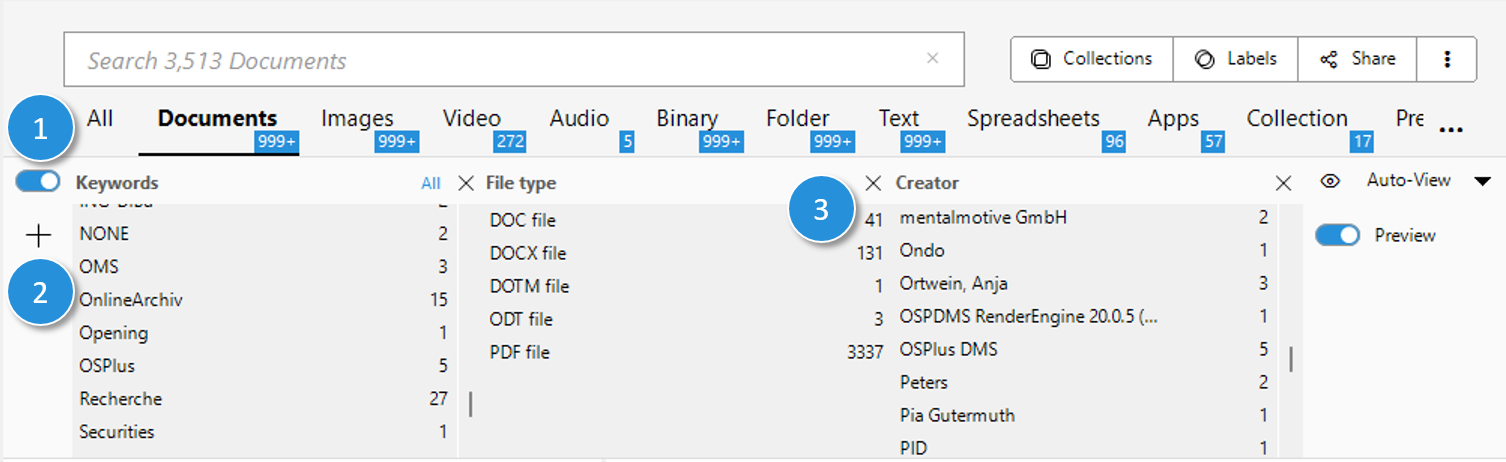
- Facets toggle — when enabled, expands the filter row into the Facets Browser.
- Filter list — shows all available filter facets. Selecting one adds that filter to the Facets Browser.
- Remove facet — clicking x removes a filter facet.